How to install the Jefi extension in Tinycast
· Eric Maro · 4 min read
Tinycast is a free, native launcher for macOS that runs Raycast extensions. With the Jefi extension, your mail, calendar and notes are a keystroke away: type "jefi" and you can search your mail, see what's on today, or start an email, an event or a note without switching windows.
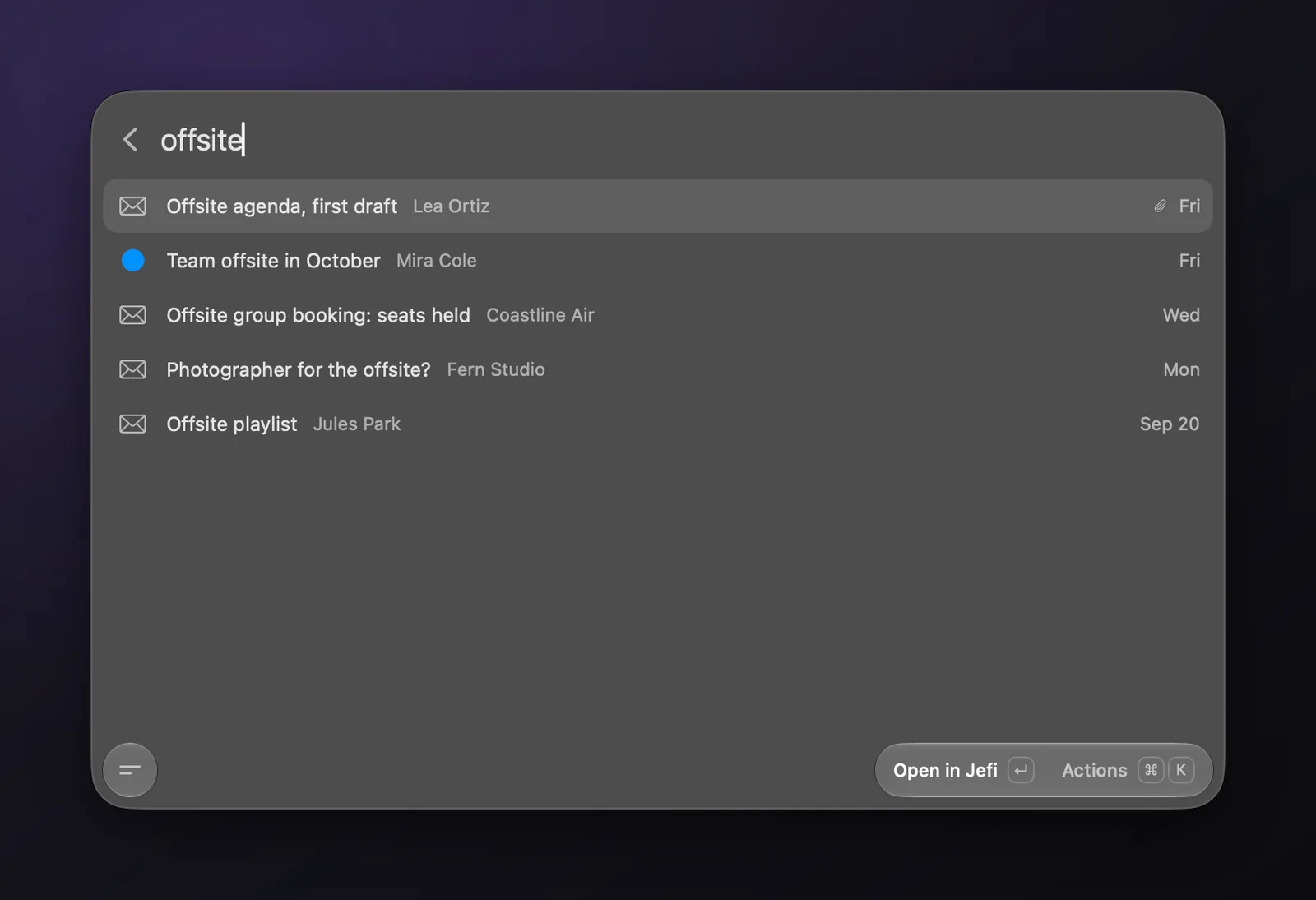
It takes about two minutes. Here's how.
What you need
- Jefi 0.7.1 or later, with at least one account added. The extension reads through Jefi's command line, which arrived in 0.7.1.
- Tinycast 0.11.3 or later.
- Node and a package manager (npm, pnpm, Bun or Yarn). The Jefi extension installs from its GitHub repository, and Tinycast builds it on your Mac when you install it. If you don't have Node yet,
brew install nodeis the quickest way to get it.
1. Install Tinycast
If you use Homebrew:
brew install --cask abue-ammar/tinycast/tinycast
Or download the latest release from Tinycast's GitHub page. Already have it? Update to 0.11.3 or later first.
2. Add the Jefi registry
Tinycast looks for extensions in registries: the Raycast Store, plus any GitHub repositories you add. Jefi's extension lives in its own repository, so add that once.
- Open Tinycast's settings: click its icon in the menu bar and choose Settings….
- Go to Extensions. Make sure extensions are turned on at the top of the page.
- Under Install, next to Search extensions, click Registries….
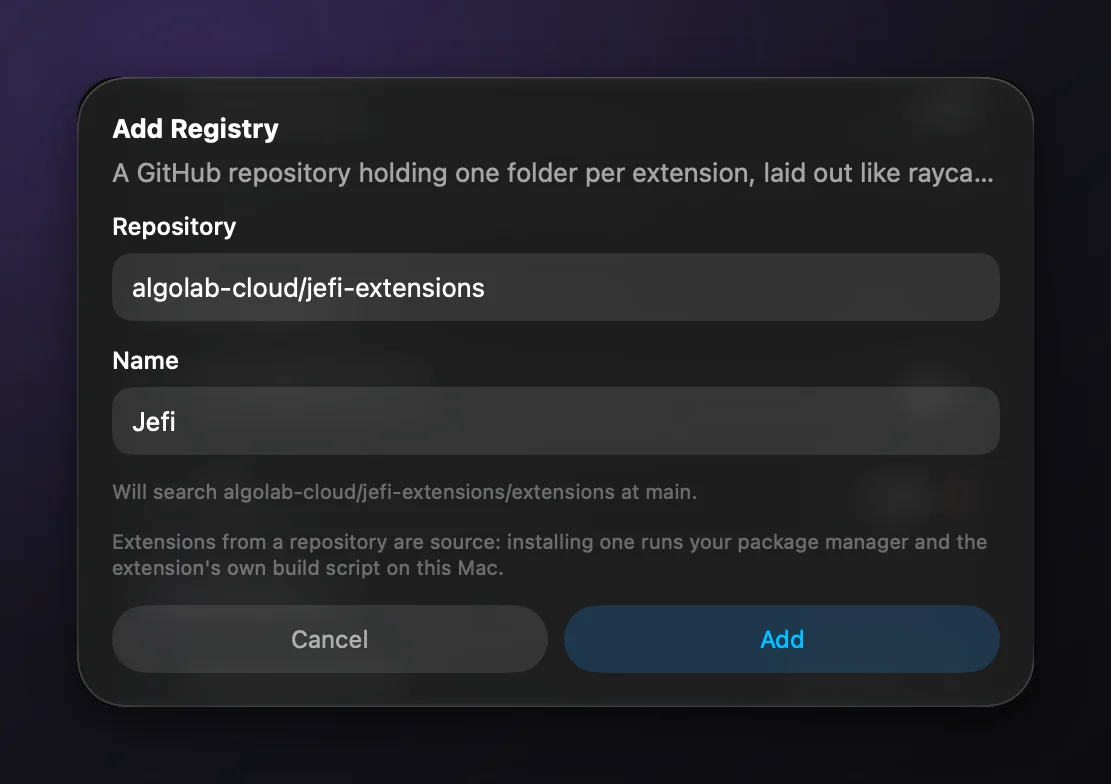
- Under GitHub Registries, click Add Registry….
- For Repository, enter
algolab-cloud/jefi-extensions, and name it Jefi. Click Add.
Jefi now shows under GitHub Registries. At the bottom of the same sheet, Package manager says which one Tinycast found. If it can't find one, this is the place to check.
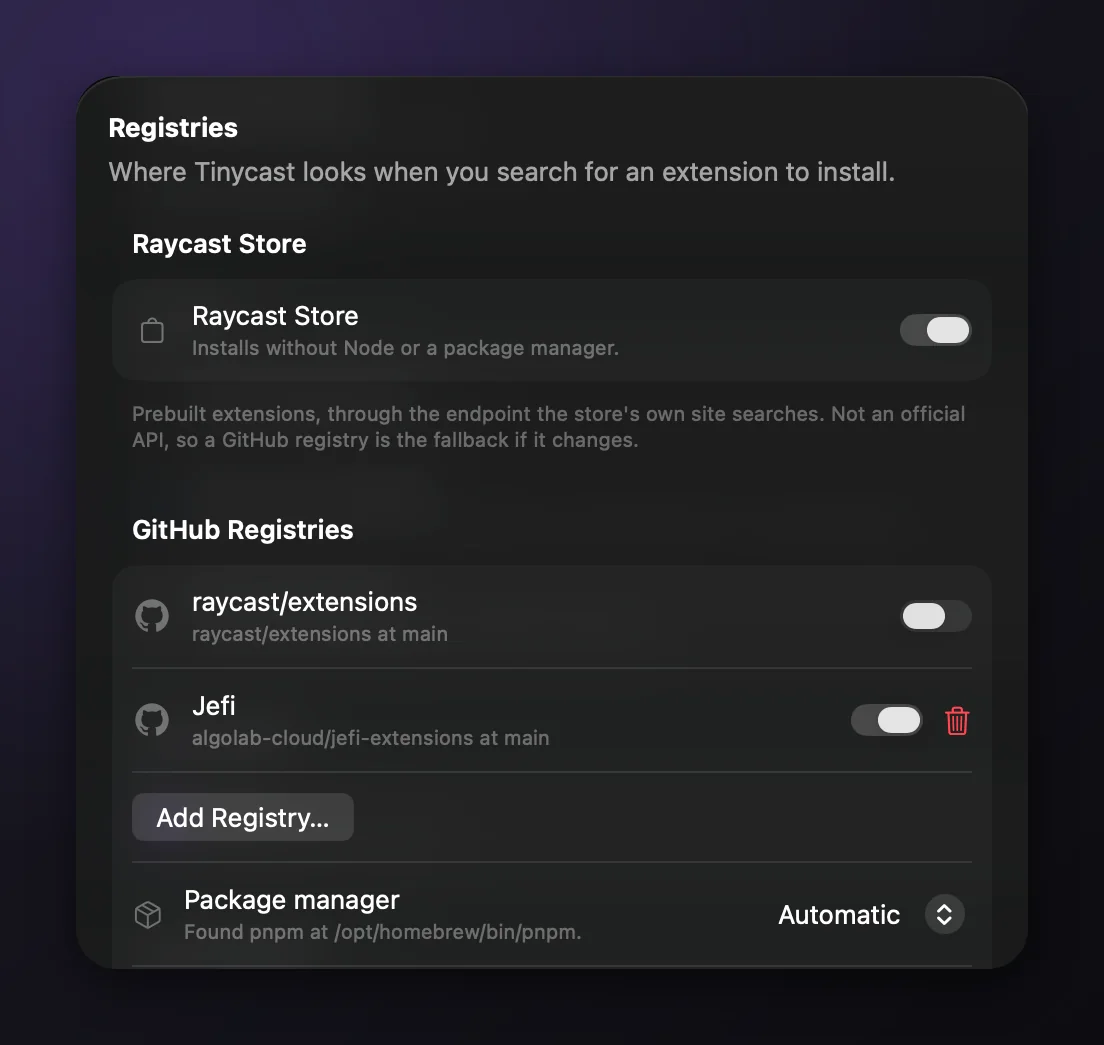
Click Done.
3. Install Jefi
- Back under Install, click Search….
- Type Jefi. It's marked builds on install, because Tinycast builds it from the repository.
- Click Install.
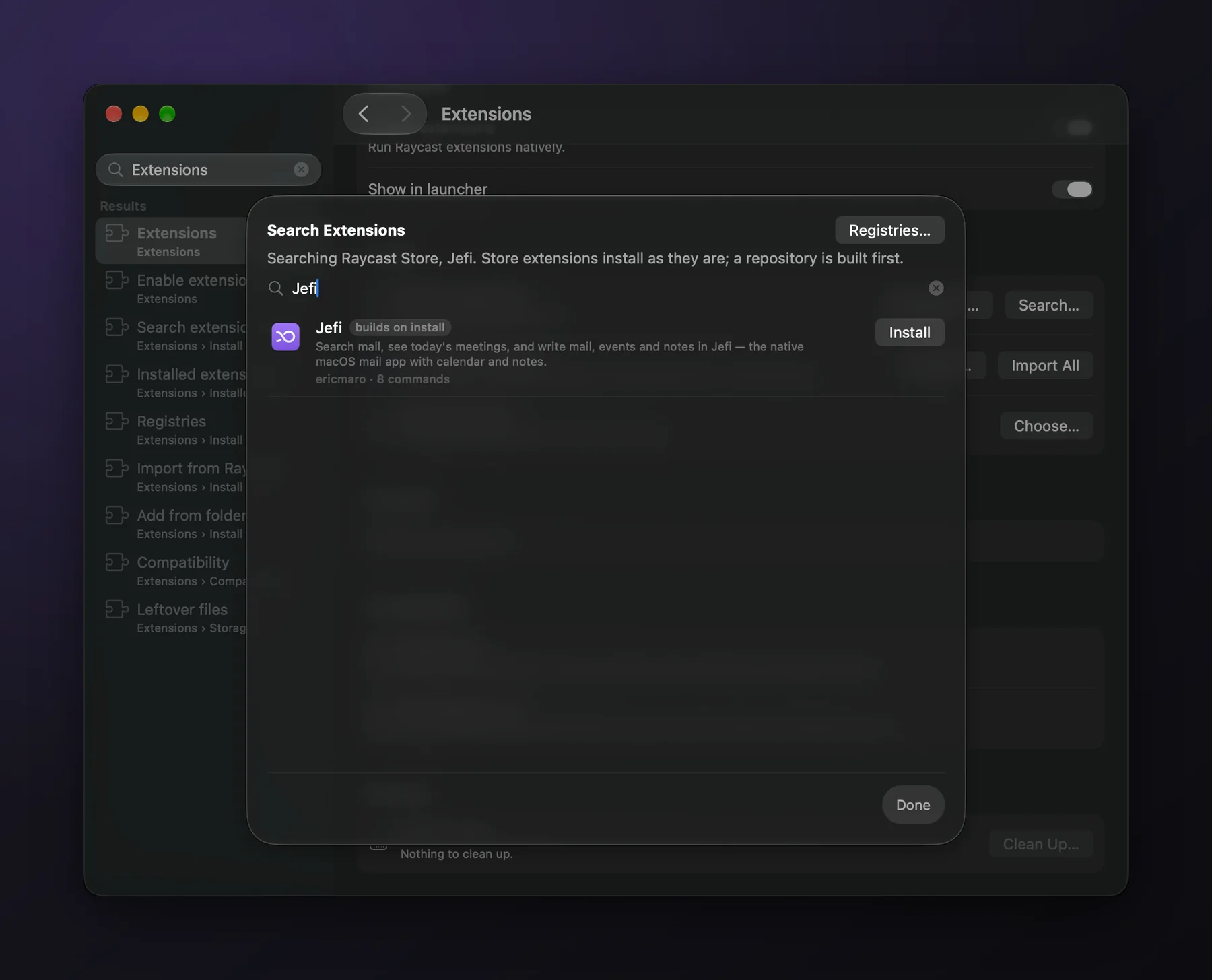
After a few seconds it says Installed, and Jefi appears under Installed in Settings with its eight commands.
4. Check the settings
Click Jefi under Installed to see its settings.
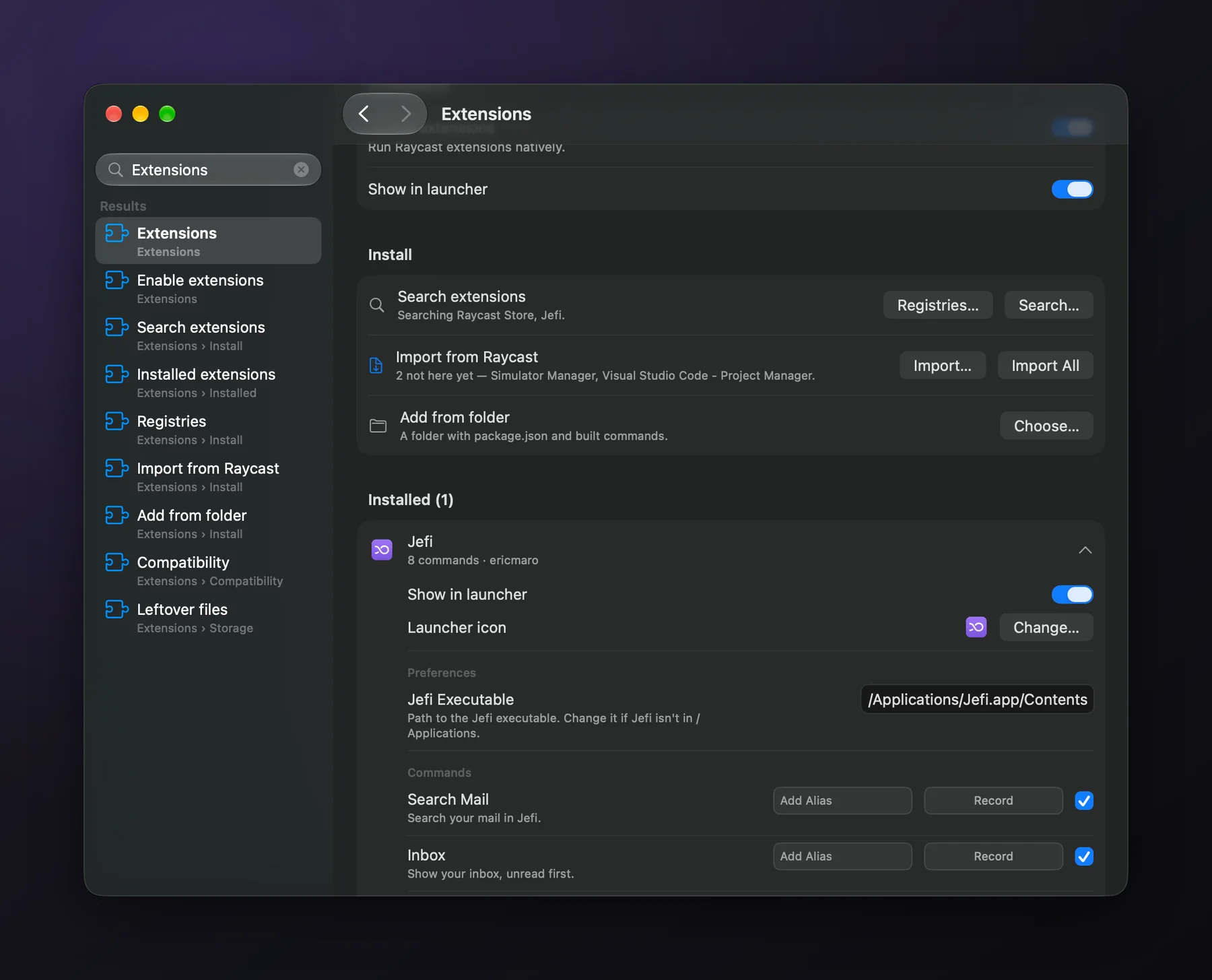
- Jefi Executable is where the extension finds Jefi. It's
/Applications/Jefi.app/Contents/MacOS/Jefiunless you change it. If you keep Jefi somewhere else, like~/Applications, point it there. - Each command can have an alias and its own hotkey (Record). If you search your mail often, a hotkey for Search Mail is worth setting.
5. Use it
Open Tinycast and type "jefi" to see every command.
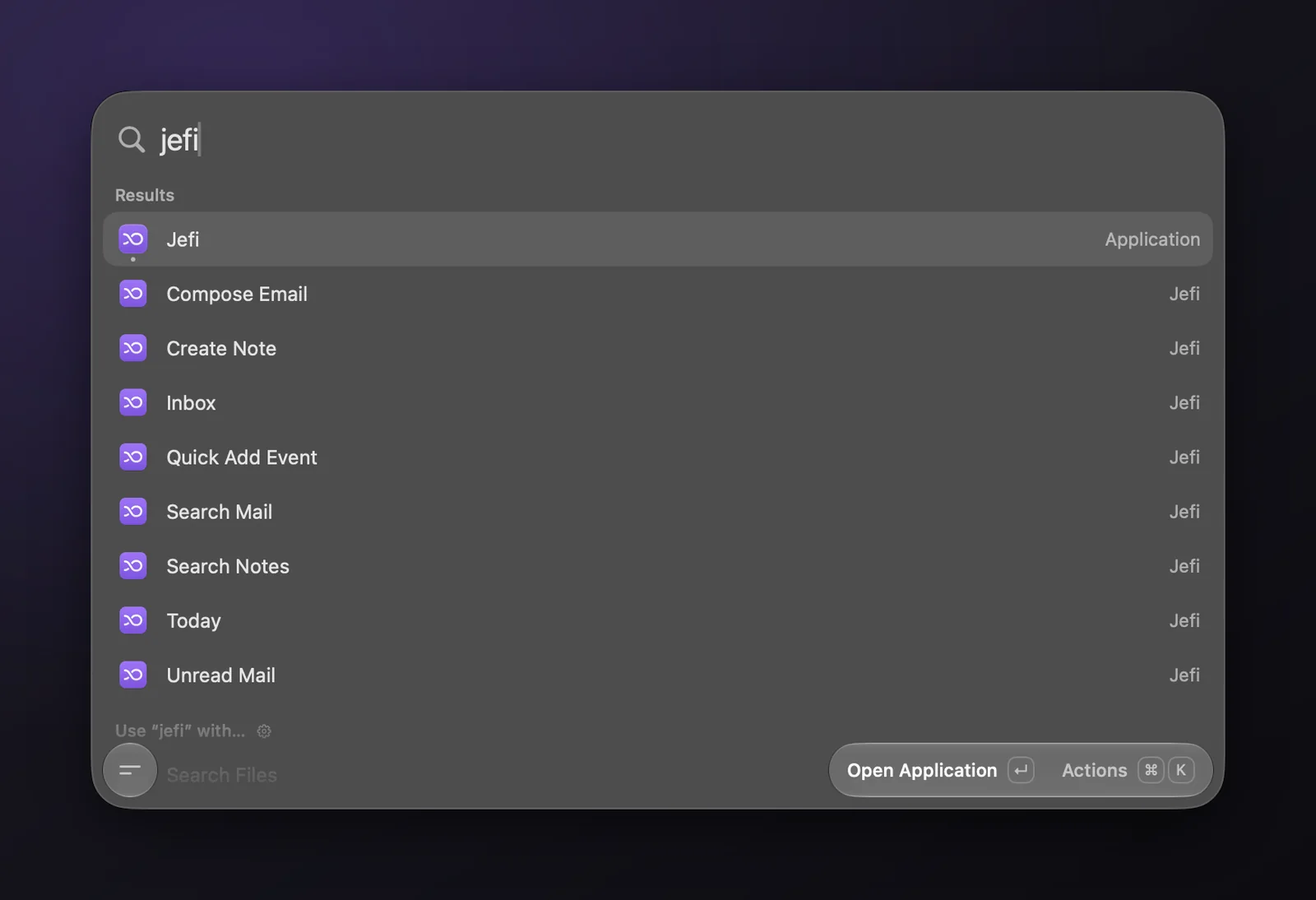
Search Mail uses the same search as Jefi: plain words, or from:, to:, subject: and has:attachment. Press Return to open a message in Jefi, or ⌘K for more: copy the subject or the sender, or reply.
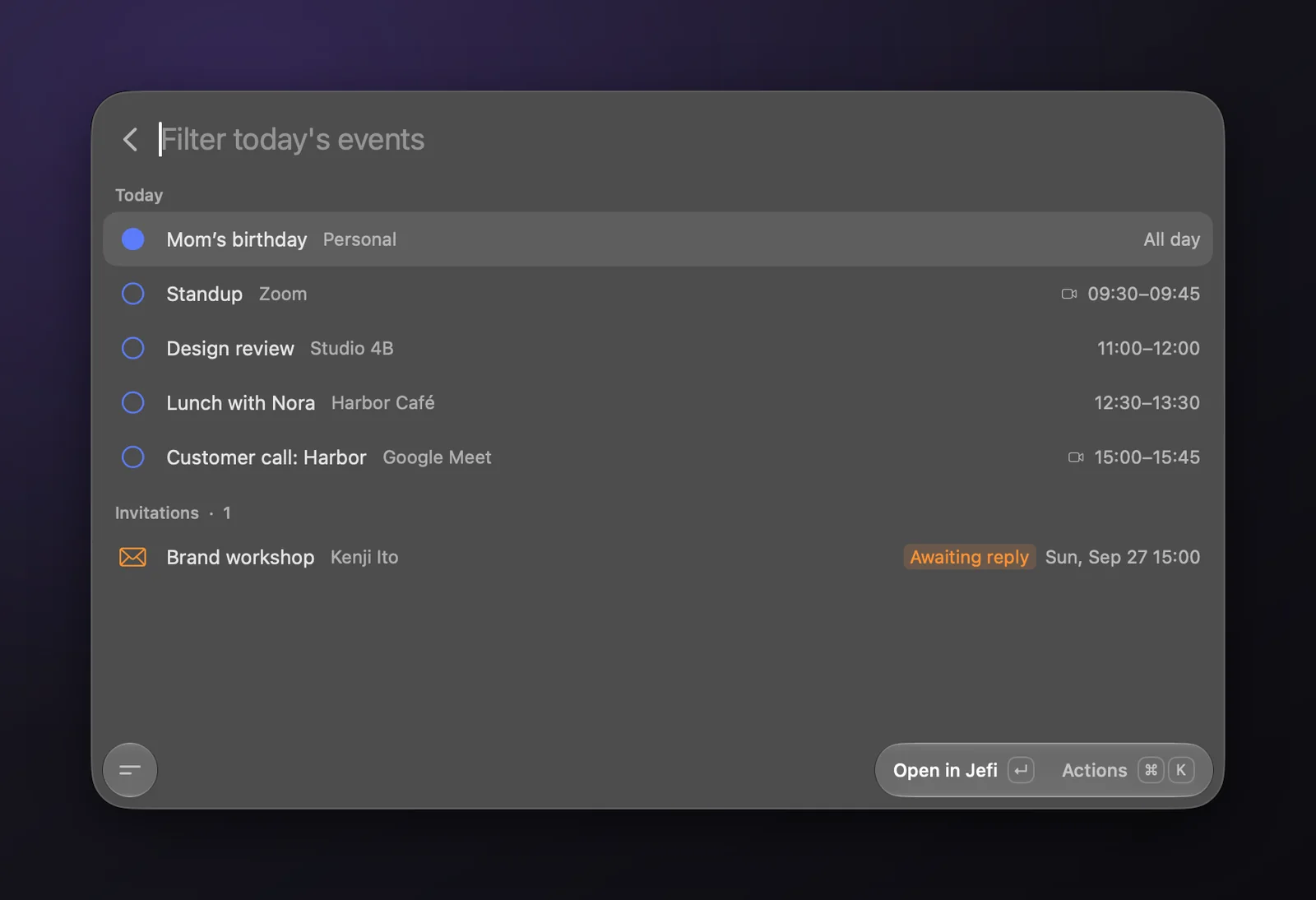
Today shows today's events and any invitations still waiting for your answer. Press ⌘J to join a meeting straight from the list.
The rest:
- Inbox: your inbox, unread first.
- Search Notes: recent notes, or the notes that match what you type.
- Compose Email and Create Note: a quick form that opens a prefilled draft or note in Jefi.
- Quick Add Event: type "Lunch with Nora Friday 1pm" and Jefi's event editor opens with it filled in.
- Unread Mail: your unread count and next event in the menu bar. Menu bar commands are new in Tinycast and, at the time of writing, only in its 0.11.4 beta. On a version that supports them, turn on Show in menu bar for Unread Mail. The other seven commands work on 0.11.3.
Anything that writes, like a draft, an event or a note, opens in Jefi for you to check and save. The extension never sends anything on its own.
What the extension can see
The extension reads your mail, calendar and notes through Jefi's command line, which can only read, and it acts by opening jefi:// links in Jefi. It all happens on your Mac: the extension doesn't connect to any server, and nothing it reads leaves your Mac. The screenshots in this post use Jefi's sample mailbox.
If something's not right
- The commands can't find Jefi. Check Jefi Executable in the extension's settings, and that Jefi is 0.7.1 or later (Jefi's Settings shows its version).
- The install fails. Tinycast needs Node and a package manager to build the extension. Install Node, then pick your package manager under Registries… → Package manager.
- The lists are empty. Jefi needs at least one account, and the mail has to have synced. Open Jefi once to check.
To remove the extension, click Jefi under Installed in Settings and choose Uninstall at the bottom. That removes it with its preferences and cache. Jefi itself isn't touched.
Using Raycast?
The same extension runs in Raycast. It's waiting for review in the Raycast Store; until then, the integrations page shows how to run it from source. That page also covers Jefi's jefi:// links, its command line and the MCP server for AI apps.
If you get stuck, tell us.