Jefi 0.8: mail, calendar, notes and tasks, connected on your Mac
· Eric Maro · 6 min read
Updated for Jefi 0.8, which adds Tasks. This post first announced the calendar and notes in 0.7; it now covers how all four parts of Jefi fit together.
An email is rarely only an email. It's a meeting someone wants on Thursday, a number a colleague is waiting for, a thought you want to keep next to the thread. In most setups those end up in three other apps, each with its own account, and the email they came from is lost somewhere behind them.
Jefi keeps them together. Mail, Calendar, Notes and Tasks sit on one slim rail (⌘1 to ⌘4), and anything you make from an email stays linked to it. The part we care about most is where those links live: on your Mac, in Jefi, and nowhere else.
One email, three things it can become
Say Kenji writes: "Can we do the design review on Thursday at 3pm?"
- An event. Jefi notices the date and offers Add to calendar under the message, with the title and time already filled in.
- A task. Press T and Jefi drafts a task from the subject, due Thursday at 3:00 PM, the date it found in the email.
- A note. Add to notes puts the message into a note, quoted and credited, for whatever you want to write around it.
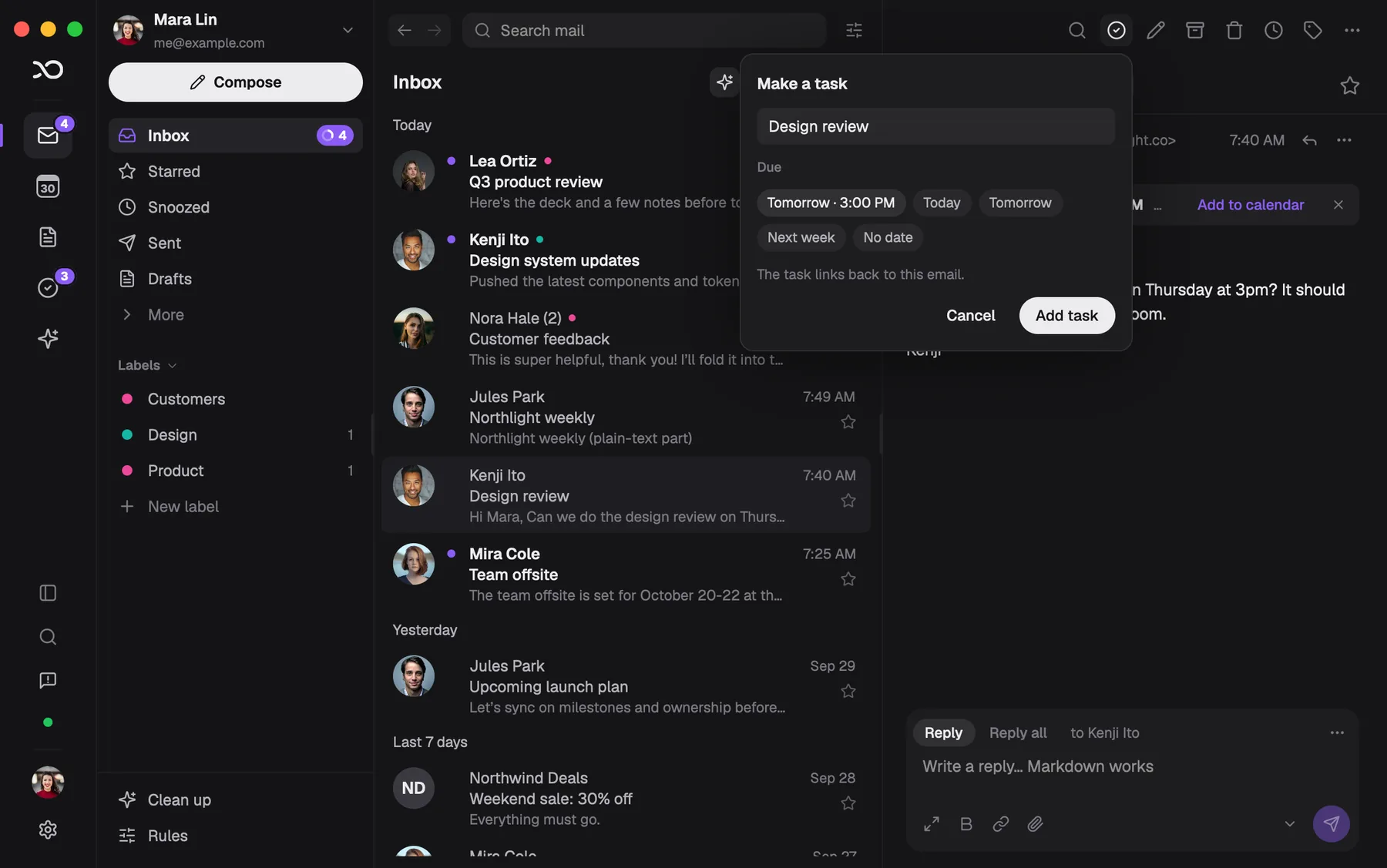
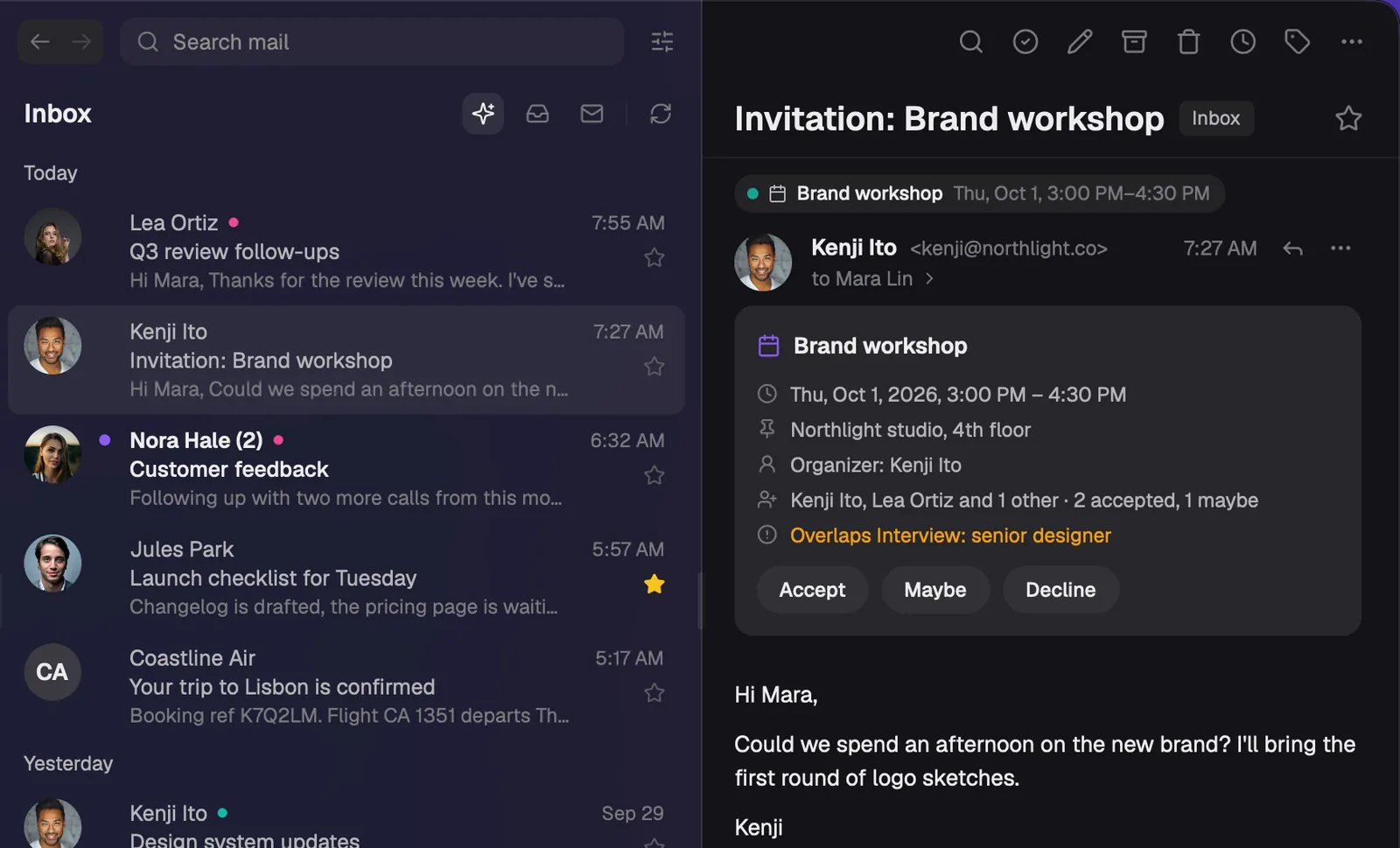
Whichever you choose, it keeps a link back to the conversation, and the conversation shows what you've made from it: events, notes and tasks appear as chips under the subject. You can see at a glance that this thread already has a task due Thursday, and tick it off right there.
How the links hold
Links point at the message itself, not at where it happens to sit. If a thread is regrouped or a message moves between folders, the link follows it. If the email is deleted, the link doesn't break into an empty box: it keeps what it said (the sender, the subject, the date) and shows that instead.
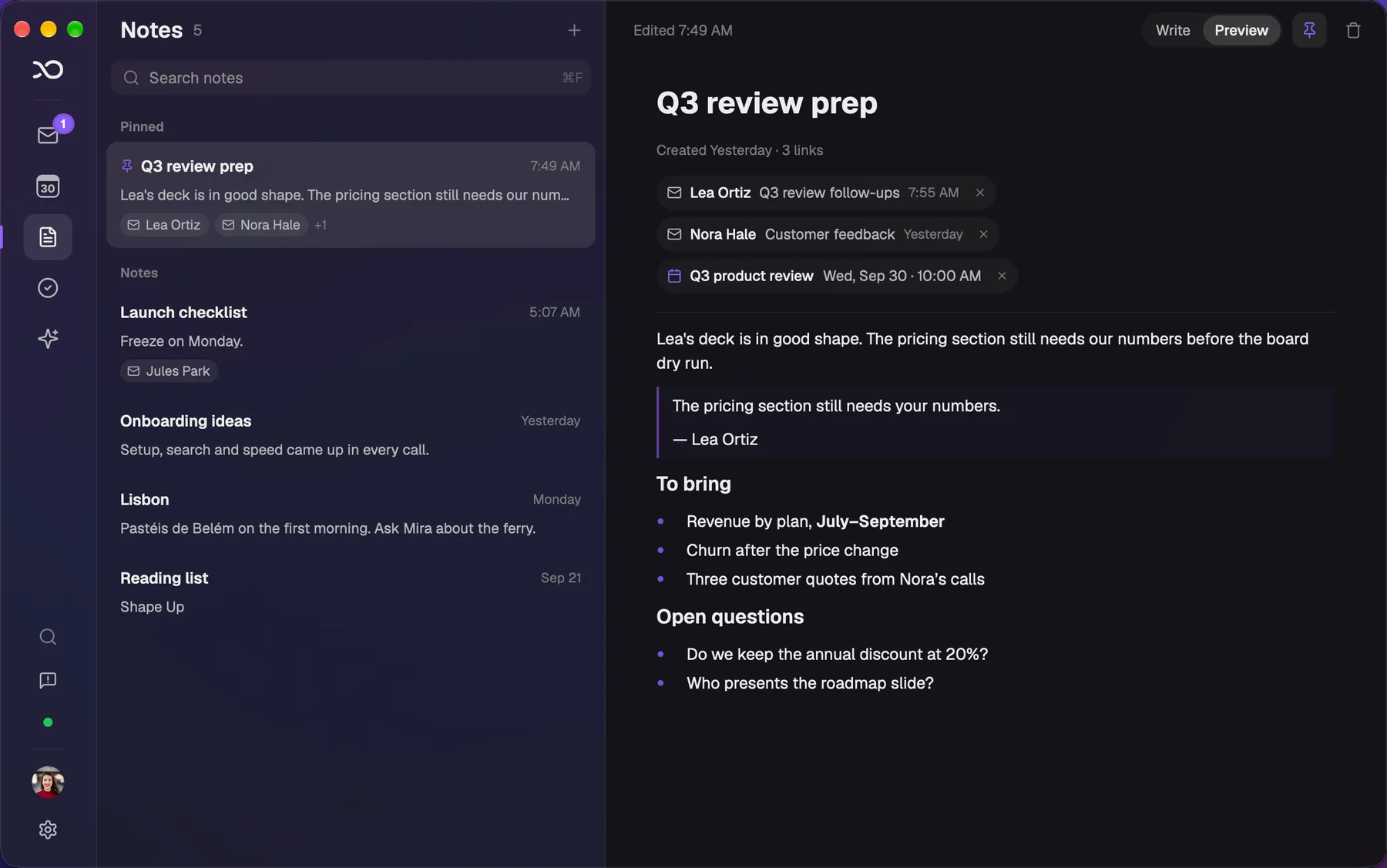
The same goes the other way. A note can link to emails and to calendar events. A task shows the email it came from, and opens it in one click. An event made from an invitation keeps the invitation.
Tasks
Tasks are new in 0.8, and they work the way people who live in issue trackers expect. Each task has a status (Backlog, Todo, In Progress, Done or Canceled), a priority, a number like T-12, and optionally a project and labels. The sidebar has views for Active, Today, Upcoming, Backlog and Completed, and one for each project and label.
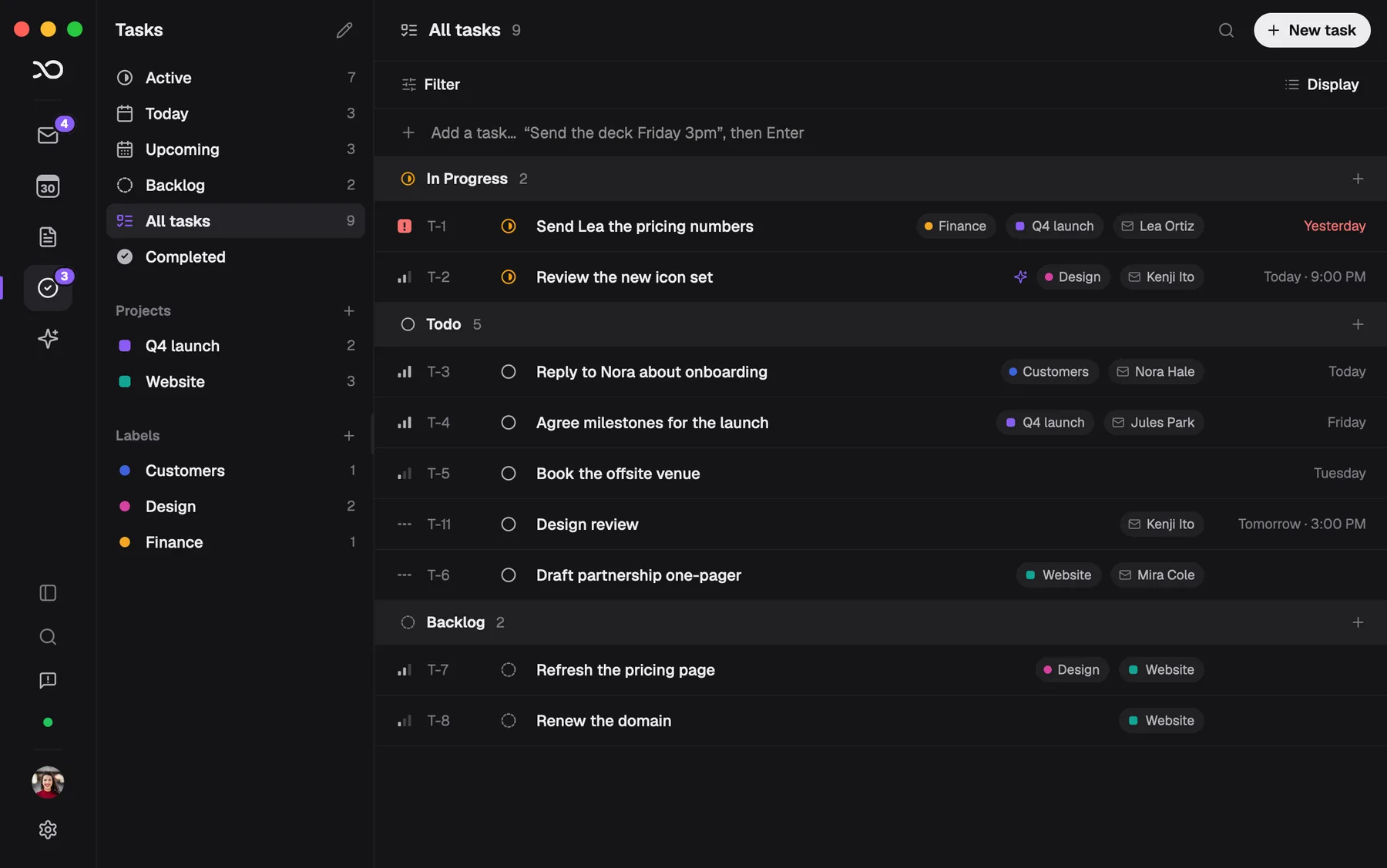
Show them as a list or a board, grouped by status, priority, project or due date, and filter by priority, label or project. Click a task and its details slide in beside the list, with every property one click away.
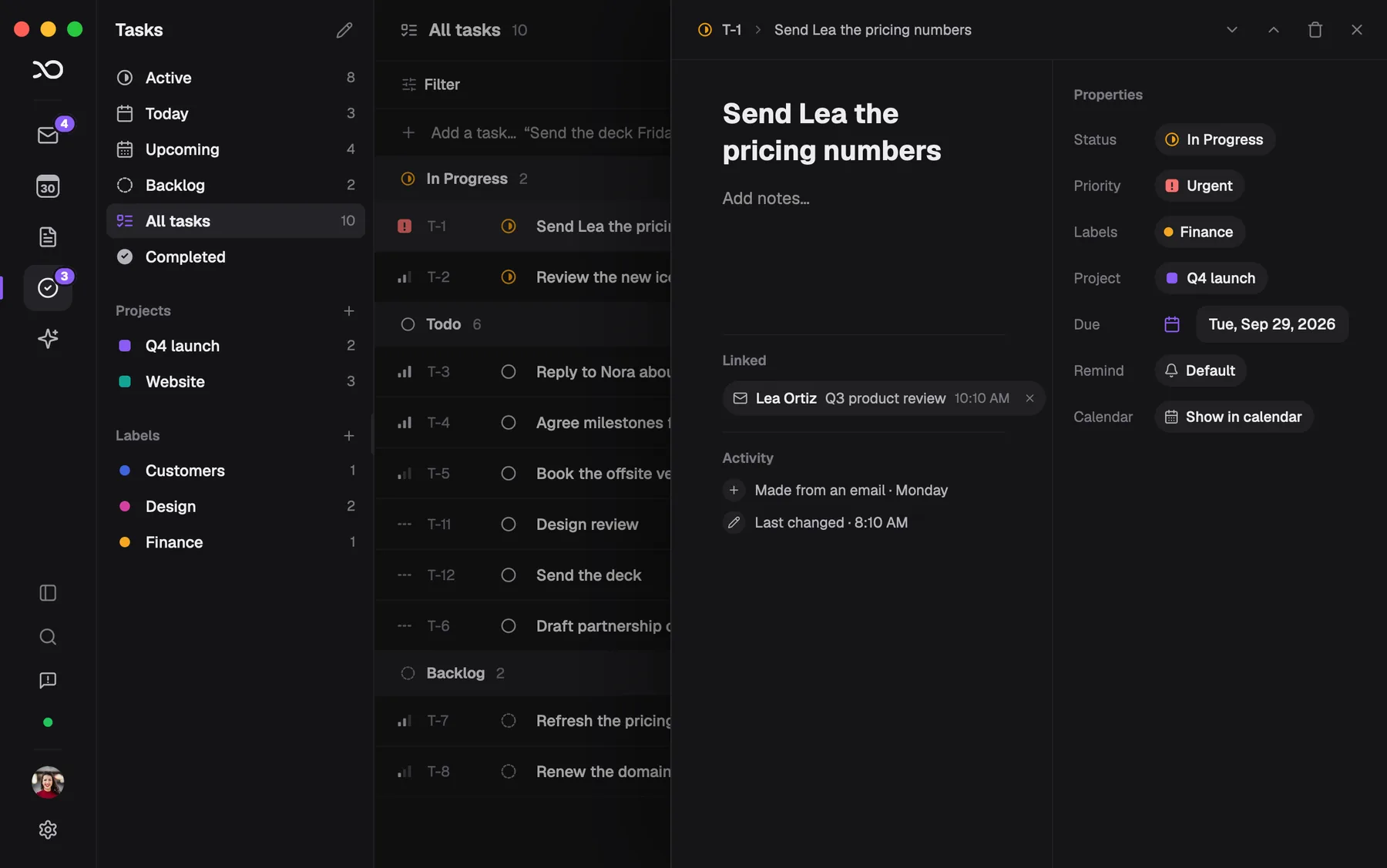
Typing a task is quick too. "Send the deck Friday 3pm", "Pay rent tomorrow" or "Renew passport in 2 weeks" sets the due date for you, in the list or from the menu bar.
If you've turned on AI, the Make task form can also suggest the action items in a conversation: the things you've been asked to do, with any deadlines. Nothing is added until you pick it. It uses your own Anthropic key, OpenAI key or Codex sign-in, like Jefi's other AI features, and it's off until you turn it on.
Due dates on your calendar
A task with a due date shows on your calendar, next to your events, on a Tasks calendar of its own. It isn't copied into the calendar: the calendar simply shows the task, so when you change the due date, it moves. Click it to mark it done or open it.
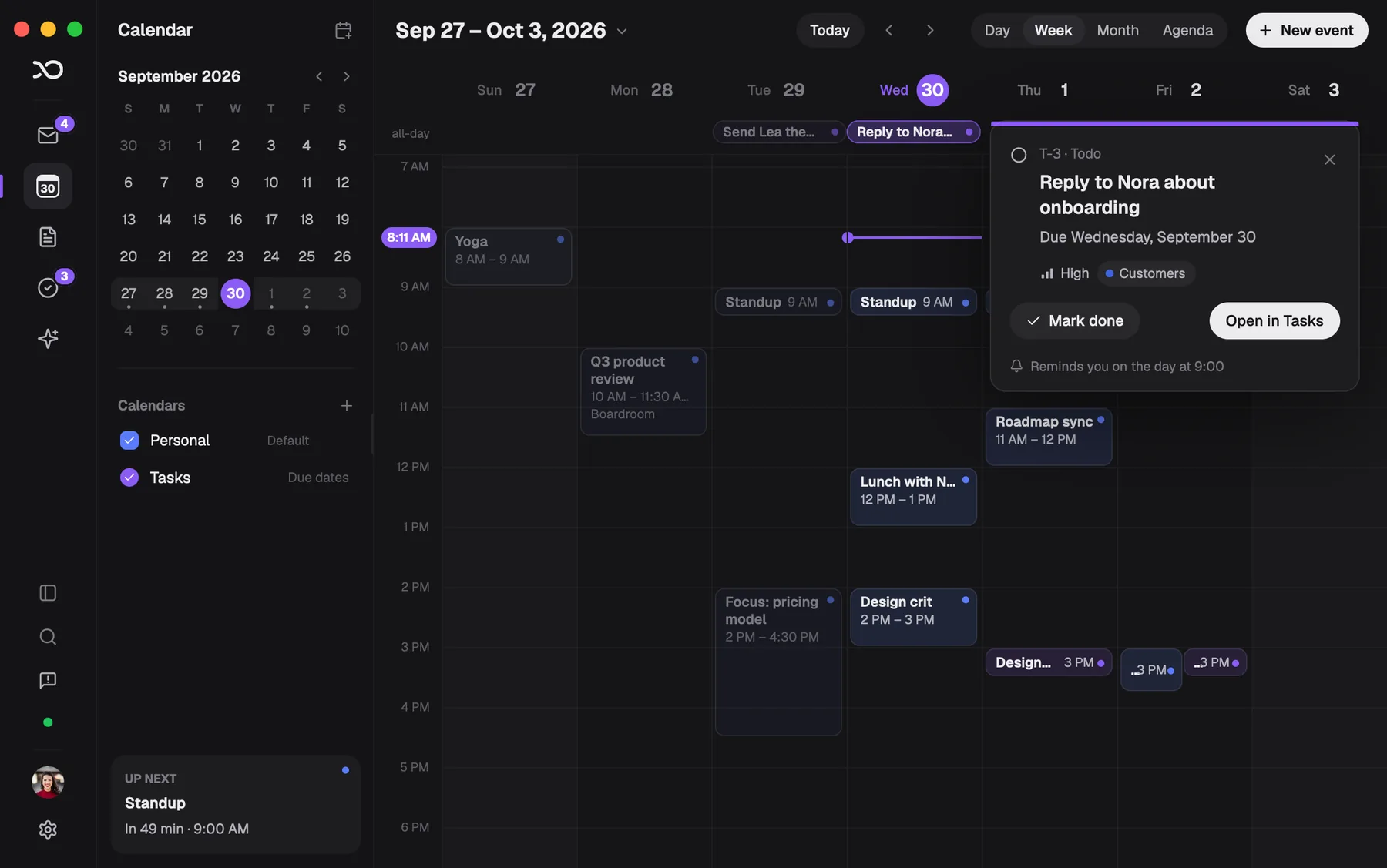
Tasks remind you the way events do. In Settings → Tasks, choose when: at the due time, 5 to 30 minutes, an hour or a day before, and 9:00 on the day (or the day before) for tasks due on a date. Any task can have its own reminder instead. A reminder shows as a notification, and clicking it opens the task.
A calendar that lives on your Mac
The calendar itself arrived in 0.7: day, week, month and agenda views, calendars of your own with their own colours, repeating events, guests and alerts.
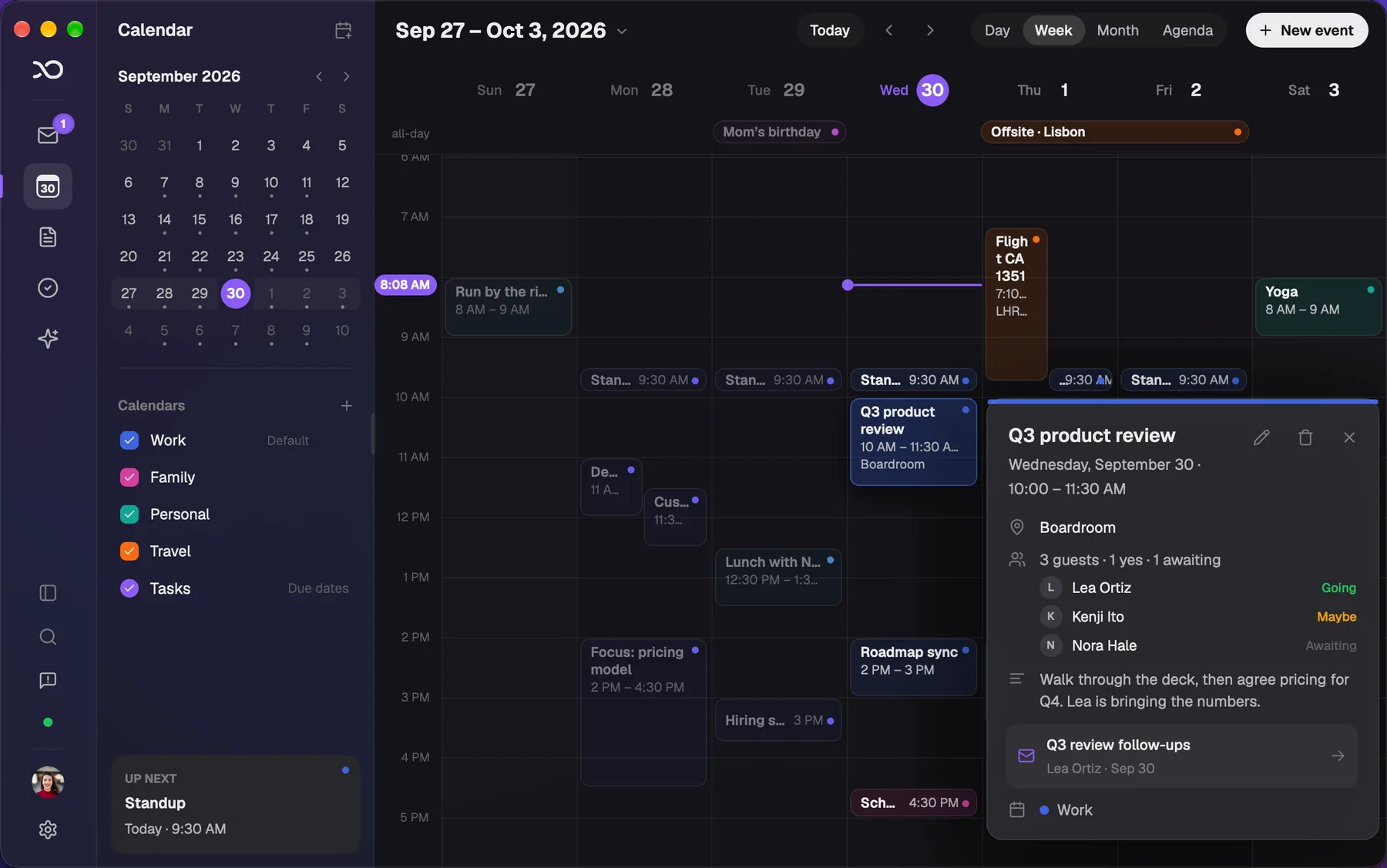
Invitations are where calendars meet, and they already travel by email, so that's how Jefi joins in. Invitations from Google Calendar, Outlook and Apple Calendar show as a card with Accept, Maybe and Decline, and your answer goes back to the organizer by email. Invite guests to your own events and Jefi sends the invitation from your own address. The people you invite don't need Jefi.
Notes
Notes save as you type, in plain Markdown, and you can pin, search and link them. Add to notes puts a message into a new note or onto the end of a recent one, quoted and credited, with a link back.
Where the connections live
Here's the part that makes Jefi different from stitching together a mail app, a calendar service and a to-do app.
- On your Mac, in one place. Your mail, events, notes and tasks, and every link between them, are stored together on your Mac. That's why the links can be this dependable: they never have to cross between companies.
- No Jefi servers, no Jefi account. Jefi connects your Mac straight to your email provider. There's nowhere on our side for your calendar, notes or tasks to go, and nothing to sign up for.
- No sync to Google or Microsoft. Your calendar and tasks don't sync with any account. Other calendars talk to Jefi through ordinary email invitations instead. That's a deliberate choice: it keeps these things private and means Jefi never needs access to your calendar account.
- Found on your Mac. Dates in your mail, like "Thursday at 3pm" or "by Friday", are read on your Mac. It isn't an AI feature, and your message isn't sent anywhere to be read.
- AI only if you ask. The assistant, summaries and suggested tasks are off by default. When you turn them on, requests go from your Mac straight to the provider you chose, with your own key or sign-in.
- Removing an account keeps your work. Remove an account and its mail goes, but your notes, events and tasks stay. Their links keep what the email said.
The trade-off is honest: because nothing leaves your Mac, your tasks and calendar don't follow you to your phone. For a lot of people, that's exactly the point.
Jefi in the menu bar
The menu bar item shows your next meeting and a countdown. Click it for today's events, the tasks due today (tick them off in place), the month, invitations waiting for an answer, and what just arrived. Type "Lunch with Nora Friday 1pm" to add an event, or "Task: call Kenji" to add a task, without opening the window.
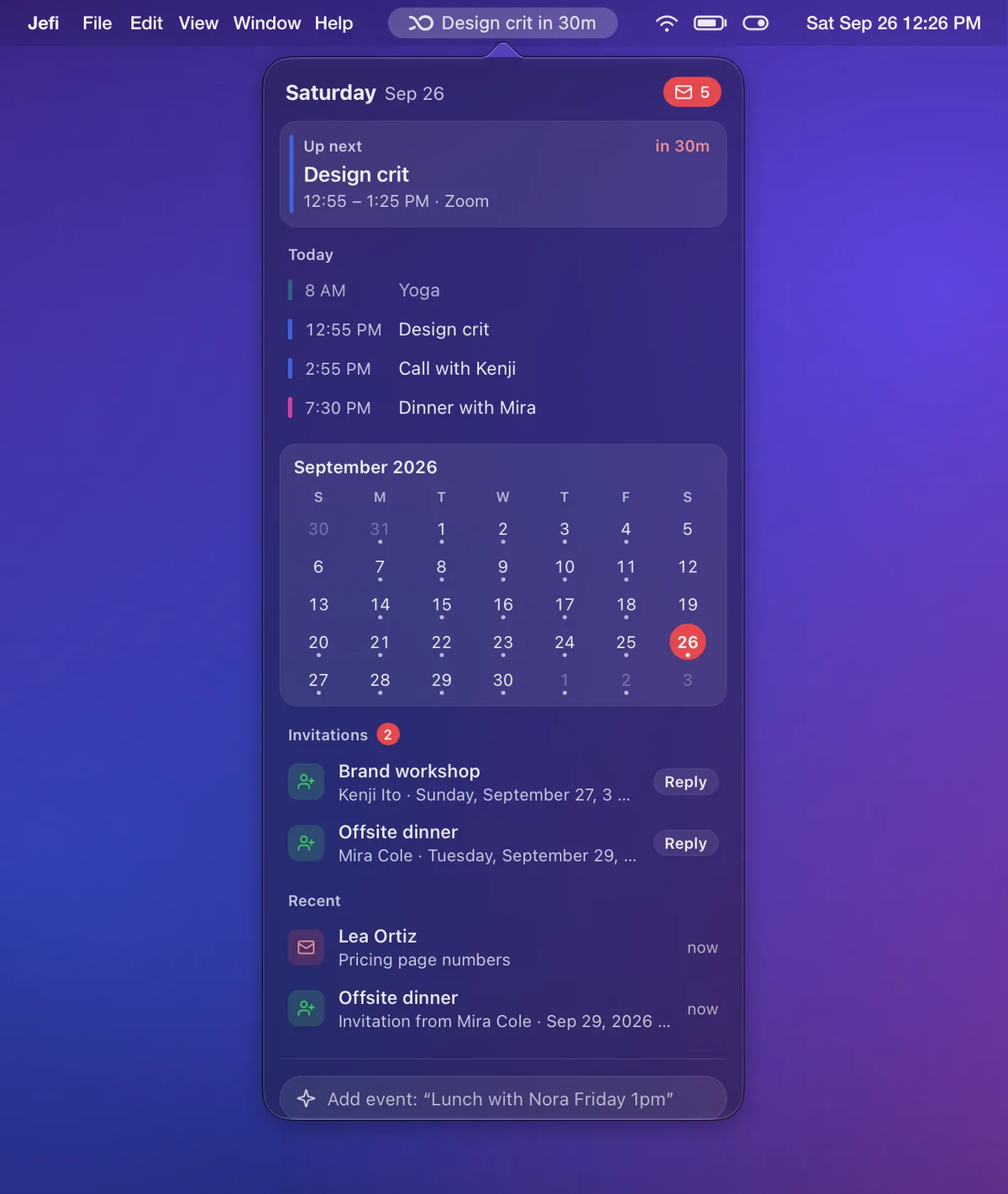
Closing the window keeps Jefi running in the menu bar, so mail, invitations and reminders still arrive. Settings choose what shows beside the icon, turn the item off, or hide the Dock icon while the window is closed.
A few smaller things from 0.7
- A new look. Jefi has a new logo and app icon.
- Tidier attachments. Attachments are compact cards of one size, with the file type, name and size.
- Catch-up across accounts. With more than one account, the Assistant can go through unread mail in every Inbox.
- Notifications, asked for properly. Setup asks for permission and explains why, and Settings shows whether notifications are allowed.
Getting it
If you already have Jefi, it will offer the update. Otherwise, download Jefi and try it free for 14 days. It needs an Apple silicon Mac running macOS 13 or later.
As always, if something feels wrong or missing, tell us.